How To enable the Bluetooth In Beagley-ai baord ? Sir @RobertCNelson @silver2row @jkridner
It’s enabled… Ble only no traditional Bluetooth classic
sir first i check using this command : sudo systemctl status bluetooth
● bluetooth.service - Bluetooth service Loaded: loaded (/usr/lib/systemd/system/bluetooth.service; enabled; preset: enabled) Active: active (running) since Thu 2026-02-19 10:35:01 UTC; 6s ago Invocation: 949a45547654413d9755b118f38f8d6f Docs: man:bluetoothd(8) Main PID: 1634 (bluetoothd) Status: “Running” Tasks: 1 (limit: 3466) Memory: 2.7M (peak: 2.9M) CPU: 207ms CGroup: /system.slice/bluetooth.service └─1634 /usr/libexec/bluetooth/bluetoothd Feb 19 10:35:01 BeagleBone systemd[1]: Starting bluetooth.service - Bluetooth service… Feb 19 10:35:01 BeagleBone (uetoothd)[1634]: bluetooth.service: ConfigurationDirectory '> Feb 19 10:35:01 BeagleBone bluetoothd[1634]: Bluetooth daemon 5.82 Feb 19 10:35:01 BeagleBone systemd[1]: Started bluetooth.service - Bluetooth service. Feb 19 10:35:01 BeagleBone bluetoothd[1634]: Starting SDP server Feb 19 10:35:01 BeagleBone bluetoothd[1634]: profiles/network/bnep.c:bnep_init() kernel > Feb 19 10:35:01 BeagleBone bluetoothd[1634]: Bluetooth management interface 1.22 initial
next i verify the adapter using this command : hciconfig -a
it doesn’t showing anything sir @RobertCNelson
can please help how to check does Bluetooth is enabled or not ? @silver2row @jkridner
systemctl start bluetooth
Step-by-Step Connection Example:


To connect a new Bluetooth device, you can follow these general steps:

Enter interactive mode:
bluetoothctl

Turn the controller on:

[bluetooth]# power on
Enable the agent and set it as default: This is needed for the pairing process.

[bluetooth]# agent on
[bluetooth]# default-agent

Start scanning for devices: Make sure your target device is in pairing mode.

[bluetooth]# scan on

Identify your device: Note the MAC address (e.g., 00:1D:43:6D:03:26) of your device from the output.

Stop scanning (optional, but recommended):

[bluetooth]# scan off

Pair with the device:

[bluetooth]# pair 00:1D:43:6D:03:26

You may be prompted to confirm a passkey. Type yes and press Enter.

Trust the device for easier future connections:

[bluetooth]# trust 00:1D:43:6D:03:26

Connect to the device:

[bluetooth]# connect 00:1D:43:6D:03:26

Exit the bluetoothctl prompt:

[bluetooth]# exit
I have not tested these examples yet but bluetoothctl seems to be a way to handle bluez. I am using the EDGE AI image for now. I can test to see if they allow Bluetooth on the machine and see if this connects.
@smith12 , I see that the commands need to be first initialized and then promoted:
Enable Bluetooth: sudo hciconfig hci0 up
I will test and report back. What I have read recently reports that the hci tool is a legacy tool without GATT commands like needed in BLE devices.
Sorry. I got the service up and running with start but the hci0 or another hci numerical value does not exist. I think my current image does not support it but I am not sure.
I will test another image.
I am out for now. I tried everything I could think to do and more. I will try another time. Blah…
hi @silver2row i run these commands but showing like . can you please help me
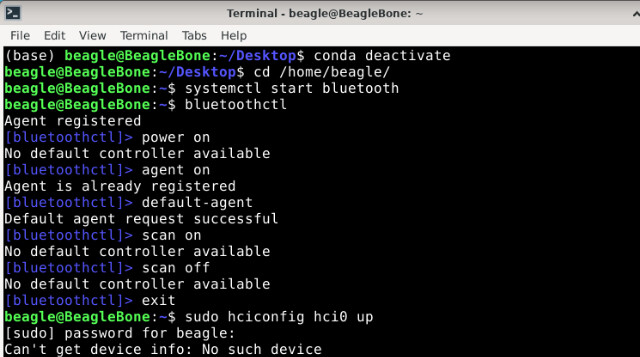
Classic Bluetooth is not supported by cc33xx. Only ble, everything you’ve tried above and discord is classic Bluetooth. You need to use the ble only parts.
1 Like
@smith12 Hi I tested on my BeagleY-AI devices with official images from BeagleBoard Latest Software Images - BeagleBoard
$ cat /etc/os-release
PRETTY_NAME="Debian GNU/Linux 13 (trixie)"
NAME="Debian GNU/Linux"
VERSION_ID="13"
VERSION="13 (trixie)"
VERSION_CODENAME=trixie
DEBIAN_VERSION_FULL=13.2

$ uname -r
6.1.83-ti-arm64-r72
Using BLE Devices on my BeagleY-AI
- Enable Bluetooth
$ sudo bash -c "echo 1 > /sys/kernel/debug/ieee80211/phy0/cc33xx/ble_enable"
- Now verify that module is recognized by the development kit.
$ hciconfig
hci0:	Type: Primary  Bus: UART
	BD Address: 10:CA:BF:D8:08:A3  ACL MTU: 255:10  SCO MTU: 0:0
	UP RUNNING
	RX bytes:312 acl:0 sco:0 events:27 errors:0
	TX bytes:193 acl:0 sco:0 commands:27 errors:0
- Turn Bluetooth on.
$ sudo hciconfig hci0 up
- With the Bluetooth interface up, scan the area for available Bluetooth devices.
$ bluetoothctl
hci0 new_settings: powered bondable le secure-conn
Agent registered
[CHG] Controller 10:CA:BF:D8:08:A3 Pairable: yes
[bluetoothctl]> scan on
SetDiscoveryFilter success
Discovery started
[CHG] Controller 10:CA:BF:D8:08:A3 Discovering: yes
[NEW] Device 20:1C:3A:40:1B:04 Pokemon GO Plus +
[NEW] Device 00:00:00:00:00:00 00-00-00-00-00-00
[NEW] Device 4E:7D:E9:6F:CE:7B 4E-7D-E9-6F-CE-7B
[NEW] Device D0:AA:A7:91:E3:9B BLESmart_0000059AD0AAA791E39B
[NEW] Device 1A:23:D8:CA:07:98 1A-23-D8-CA-07-98
[NEW] Device 63:60:0F:57:FD:DE 63-60-0F-57-FD-DE
[NEW] Device 45:CC:0D:D1:9A:C0 45-CC-0D-D1-9A-C0
[NEW] Device E1:A4:69:CD:7B:55 E1-A4-69-CD-7B-55
[NEW] Device 50:85:05:D4:2E:C8 50-85-05-D4-2E-C8
[NEW] Device 71:2A:66:70:1C:65 71-2A-66-70-1C-65
[NEW] Device 4A:05:B5:7F:45:66 4A-05-B5-7F-45-66
[NEW] Device 14:51:20:9F:67:E0 14-51-20-9F-67-E0
[NEW] Device 59:C7:24:DB:19:F9 59-C7-24-DB-19-F9
[NEW] Device 4A:26:12:BB:B2:0B 4A-26-12-BB-B2-0B
[NEW] Device 68:A7:B4:BF:BA:DE 68-A7-B4-BF-BA-DE
[bluetoothctl]> scan off
Discovery stopped
I have tested the bluetoothctl seems to be working. Also, the official images is shipped with BlueZ
$ btmon -v
5.82
You can refer below guide for AM62x supports external cc33xx Bluetooth modules
You can refer below guide to install BlueZ Bluetooth Stack
2 Likes
i always forget this..
Thank you @Jiande @RobertCNelson @silver2row
1 Like